



Wine is an acronym for “Wine is not an emulator”. It is a free and open-source tool that is used to run Windows programs (.exe) on Linux. It provides a compatibility layer between Linux and Windows. Wine translates Windows API calls into POSIX calls for Linux to understand.
In this article, we will show you how to install Wine on Ubuntu 22.04 both through the terminal and GUI.
Let’s continue!
Prerequisites
- You should have sudo or root privileges for this guide.
Install Wine on Ubuntu 22.04 through Terminal
Fire up the terminal using a dashboard or with the help of a shortcut key Ctrl + Alt+ T.
Update and upgrade the Ubuntu repository with the help of the below command.
sudo apt update && sudo apt upgrade


Press ‘y’ and hit [Enter] from the keyboard. Wait for the command to finish.
The next step is to enable 32-bit architecture. For this, utilize the following command on your terminal.
sudo dpkg --add-architecture i386


Import the GPG key by running the following command.
wget -O - https://dl.winehq.org/wine-builds/winehq.key | sudo apt-key add -

Wine is not available in the official repository of Ubuntu. Therefore, let’s add it with the help of the following command. Press [Enter] when you are prompted.
sudo add-apt-repository 'deb https://dl.winehq.org/wine-builds/ubuntu/ impish main'

Update the Ubuntu local repository by running the command.
sudo apt update

Move ahead and install Wine on your Ubuntu system. When you are prompted, press ‘y’ and hit [Enter] from the keyboard.

sudo apt install wine

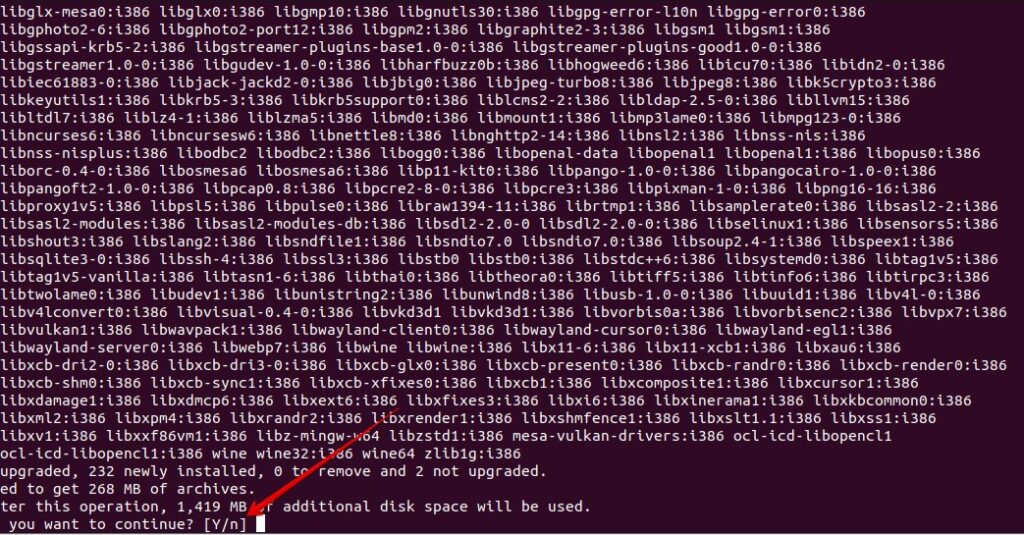

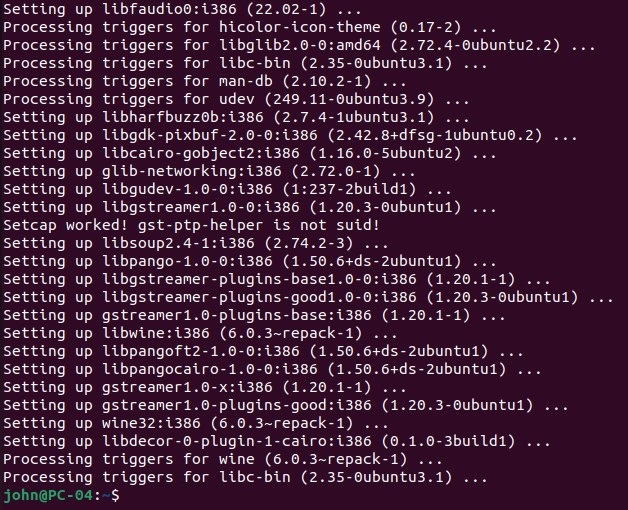
Let’s verify the installation. Execute the command and it should return you a version number of wine.
wine --version


As you can see wine 6.0 has been installed on your system.
How to Remove or Uninstall Wine from Ubuntu
If you no longer need Wine on your system, you can remove it by running:
sudo apt remove wine

When you are prompted, press ‘y’ and hit [Enter] from the keyboard.


Wait for the command to finish the uninstallation.
You can verify the removal when you run the command you will get a message ‘command wine not found’.
wine --version


Conclusion
Thank you for reading my article. I hope you have successfully installed Wine on your Ubuntu 22.04 system. If not, use the comment section at the end of this article.

